Three plugins for a more useful Kiosk Satellite wall panel

A wall panel has a different job from the Home Assistant app on my phone. I want to walk up to it, find the page I need, change something in the room, or check what's happening without touching anything.
Those are three different interactions. Putting all of them into dashboard cards works, but it also means the dashboard has to carry navigation, frequently used controls and status updates alongside everything else.
I built three plugins for Kiosk Satellite to move those jobs into the kiosk itself: Navigation bar, Action bar and Live notifications. They work independently, but fit together around a simple split: where to go, what to control, and what to keep an eye on.
Navigation that belongs to the panel
The Navigation bar started as a replacement for the navigation card in my Home Assistant dashboards.
The important difference is where it lives. A dashboard card belongs to a dashboard. A native KS bar can also stay available over camera views and supported KS screens, including the calendar and Music Library. Opening a camera does not have to mean losing the way back to everything else.
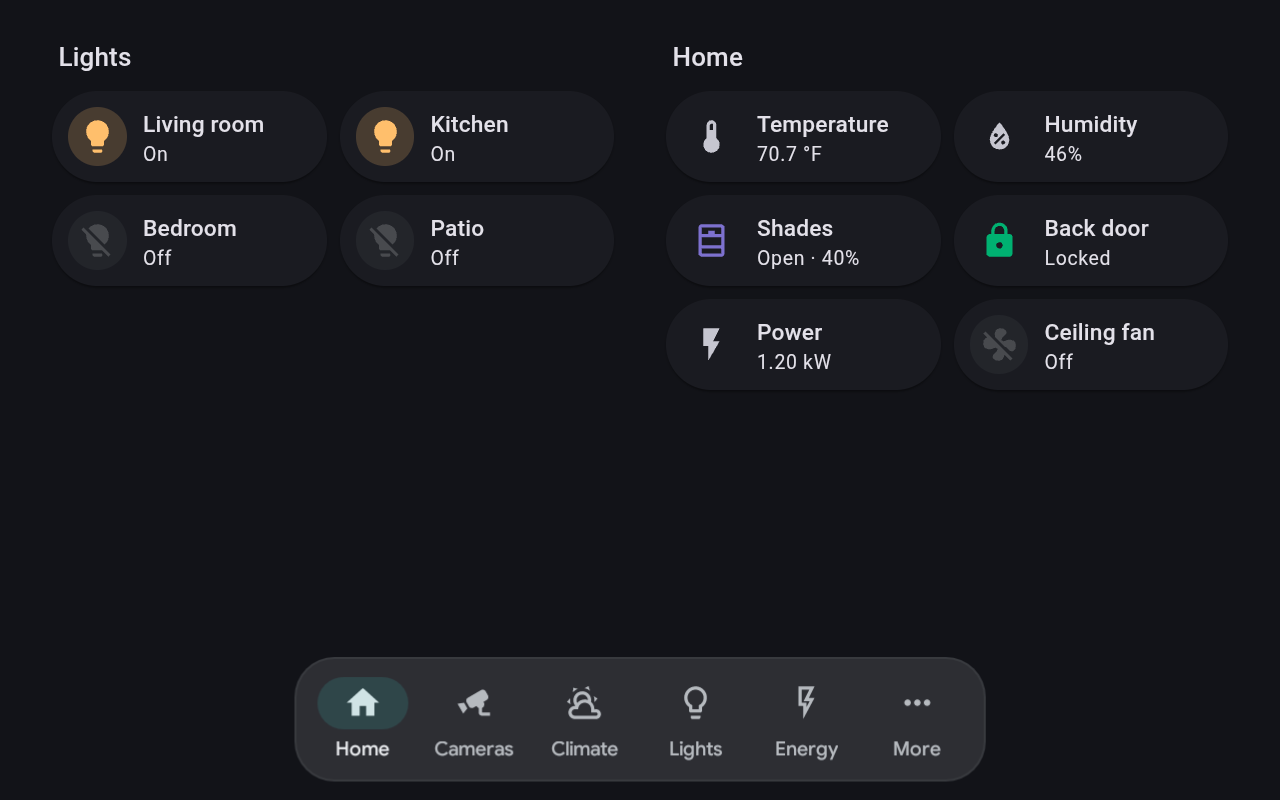
The current page's item lights up regardless of how I reached it. Items can open dashboard views, Home Assistant's built-in pages, camera views, apps or kiosk actions. Menus provide another level without filling the whole bar: a short menu is a list, while larger menus become a grid.
One useful arrangement is a camera item that opens a frequently used view on a tap and the full camera menu on a long press. The common action stays quick without giving every camera its own permanent button.
The bar can sit on any edge, and it reserves space so dashboard cards do not disappear underneath it. When I don't need it, I can swipe it away behind a small tab.
For multiple panels, navigation is also a good candidate for fleet sync. Set it up on the leader and share the same structure across the house, while each panel uses its own KS Scale UI setting.
Controls that stay with the room
The Action bar answers a different question: what should I be able to change without navigating anywhere?
For me, that's usually the room's lights and blinds. Those controls should still be nearby when the dashboard is showing something unrelated.
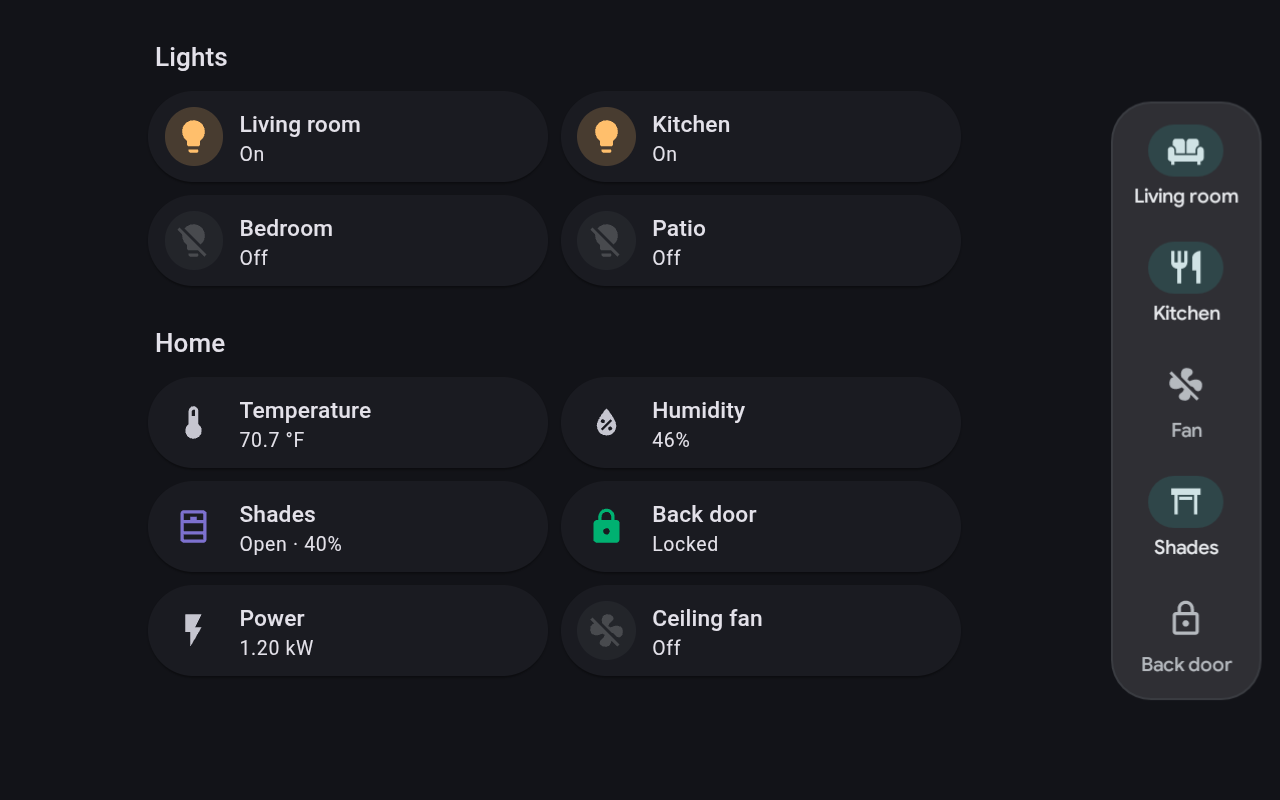
Each item represents a Home Assistant entity and shows its live state. Lights and switches toggle, scripts start, scenes activate, and media players play or pause. An input select opens its options, leaving any behavior triggered by that selection in Home Assistant.
Covers and locks need a little more care. A normal tap opens a menu rather than moving something immediately. A cover's menu offers Open, Stop and Close, with a position slider when supported. A lock's menu offers Lock and Unlock. Long presses are shortcuts that act immediately, so those are worth understanding before configuring a panel others will use.
The plugin also distinguishes sending a command from knowing that it worked. A button shows a pending state while waiting for Home Assistant's confirmation. Commands are sent once, not automatically retried: a timeout does not prove that the original command failed to arrive, and repeating a toggle could undo it.
Unlike navigation, these controls are usually room-specific. KS fleet profiles synchronize all of a plugin's settings, including its items. To keep different controls in different rooms, I leave Action bar out of the shared profile's Plugins row and configure it per panel.
Information that doesn't need a tap
The third plugin, Live notifications, is for things I want to notice rather than control.
Think of a dryer's time remaining, a vacuum's progress or a vehicle's arrival time. Those don't necessarily need a permanent dashboard card, but they are useful while something is happening.
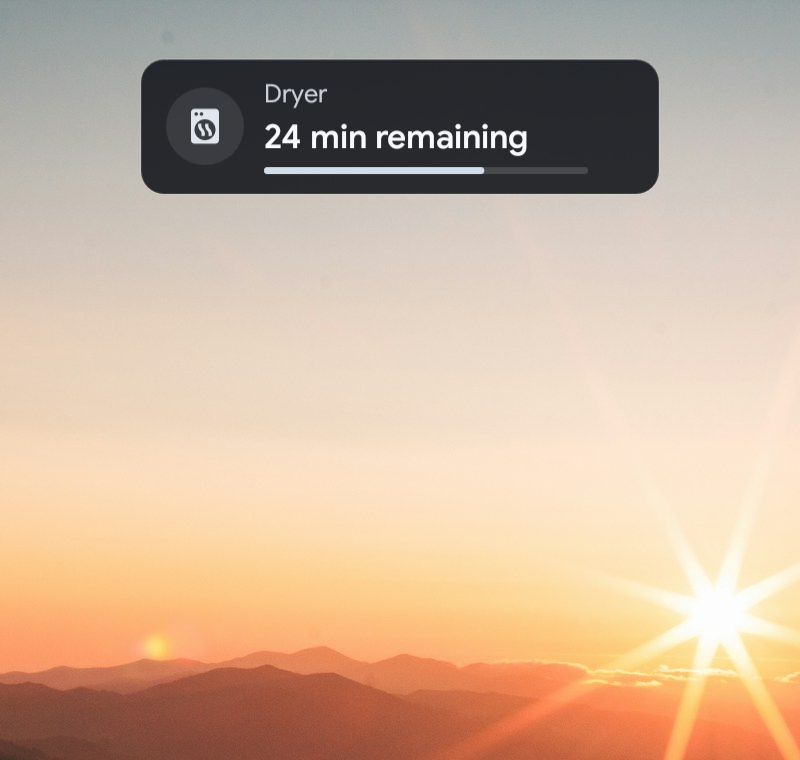
Despite the name, this isn't a notification inbox. There are no dismiss buttons, tap actions or history. It is a read-only status chip that rotates through relevant items, one at a time. With only one eligible item, it stays still.
You can start with one entity and use its name, icon and state. More involved cases can use different sources for visibility, text and progress. For a dryer, for example, its running state can decide whether the notification appears, while a separate sensor supplies the remaining time. Time remaining is not automatically treated as a completion percentage.
The chip can appear on the dashboard, the screensaver or both. Native styling follows KS's theme; Glass provides a translucent dark surface for photos. It does not replace the screensaver clock or intercept touches.
Placement is manual. The preview makes it easier to find a spot, but there is no automatic collision avoidance for clocks, widgets or other bars.
One panel, three separate jobs
The arrangement I like is navigation along the bottom, room controls on the right, and live status positioned where it leaves the rest of the screen clear.
The bars can reserve dashboard space and hide when they aren't needed. Live notifications appear only when their conditions match. The point isn't to add three more permanent things to look at; it's to make each interaction available in the right place.
All three use native Android views rather than adding another WebView. Home Assistant access goes through KS's existing connection, so there is no separate HA token to manage in the plugins.
They also depend on KS's plugin SDK rather than trying to replace the host. Credit goes to @jxlarrea for Kiosk Satellite and its SDK. Navigation bar was loosely inspired by lovelace-navbar-card, and Live notifications was conceptually inspired by ks-live-activities.
Trying them
For all three together, use Kiosk Satellite 2026.10.42 or newer on Android 8.0 or newer, with KS connected to Home Assistant. Keeping KS current also enables newer host features, such as navigation over additional KS screens.
Navigation bar and Action bar are in Settings > Plugin Manager > Browse plugins. You can also install any of the three through Add plugin using its repository URL:
Review the preview, trust and install the plugin, then enable it. Settings are available on the kiosk and in Remote Admin.